Grocery Math Shopping Tool
I used to love eating out until I realized the freedom, creativity, safety and economic benefits I get when making my own food at home. Grocery shopping is essential to having the correct ingredients.
Although I enjoy grocery shopping, I didn’t like the overall sticker shock I got when my cart of groceries cost more than I was expecting. Although, making a list helps, I needed that plus a tool to help estimate accurately what I can expect to pay at the cash register. I realized that if I do the math accurately using Google Sheets, I am able to eliminate the stress and surprise factor from paying for my groceries.
The idea behind this is to list what you intend to buy, enter the price you see and the quantity when you put the item or items in your cart. It gives you the extended price for that item and adds it to the total at the bottom of the sheet. If you take it out of the cart and off the list, the total reflects that action. At the end of the day when your cart is full, you will have a good idea of what you should be paying at the register based upon the amount you entered in the cost section from the sticker price.
If the item price is based upon weight, enter 1 for quantity and the prices from the scale.
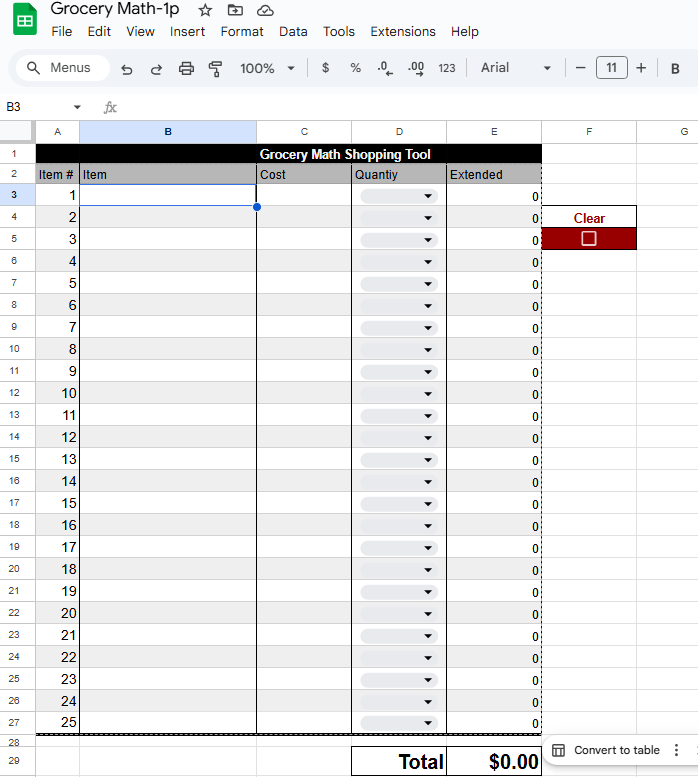
Column B – Item description – Enter the description of the item.
Column C – Cost – Enter the price you see on the shelf of the grocery store for that item.

- If the item sold is based upon weight, weigh the item, enter the price in cost and select 1 in the quantity section.
Column D – Quantity – Enter the quantity of the items to be purchased.

Column E – Extended – This is calculated by multiplying Column C (cost) x Column D (quantity) to provide the price you pay less sales tax for that line item. Select from the dropdown the quantity. Note: It may take a second to load.

Total Section at the bottom is calculated by adding all the amounts in column E (extended) in real time.

Clear – Deletes entries and gives you a blank sheet to start with. When you are done and ready for the next trip to the grocery store, click the checkbox and it will delete the entries.

Rules
1).If you put it in the cart, make sure you put the price and quantity on the sheet.
2). If you remove the item from your cart, remove it, the price and quantity from the sheet.
3). Do not put anything in the cart that is not on the list unless you and it and include the price and quantity.
4). If you know how the market is organized, arrange your list in a way that gets you through the isles and through the store once. For instance – go from the frozen to the produce and then to the checkout. NO Going back and forth looking for for forgetting things.
These tools come in 2 versions right now the 25 item and the 50 item versions.
For this to work, you need to have Google Sheets on your device. You can download these and save on your device so that you can edit them as you need.
Google Sheets: Online Spreadsheets & Templates
Google Sheets – Apps on Google Play
How to use Google Sheets – Computer
Google Sheets
Wikipediahttps://en.wikipedia.org › wiki › Google_Sheets
Download
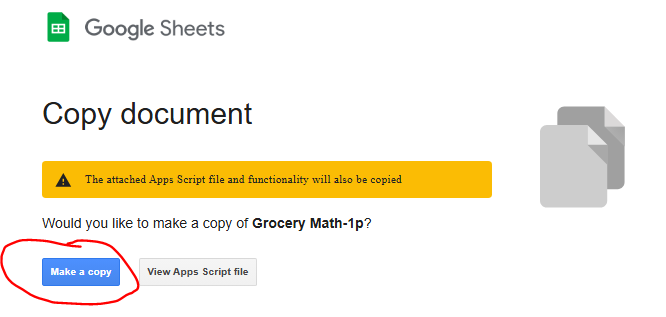
When prompted you have to make a copy to your device before you can edit it. Additionally there are parts that you can’t edit. Note: The script clears the sheet.
25 Item version – Grocery Math Shopping Tool
50 Item version – Grocery Math Shopping Tool 50
I created this so I can get a more accurate estimate of my grocery bill for the day.